Joining a Google Meet call with a meeting code
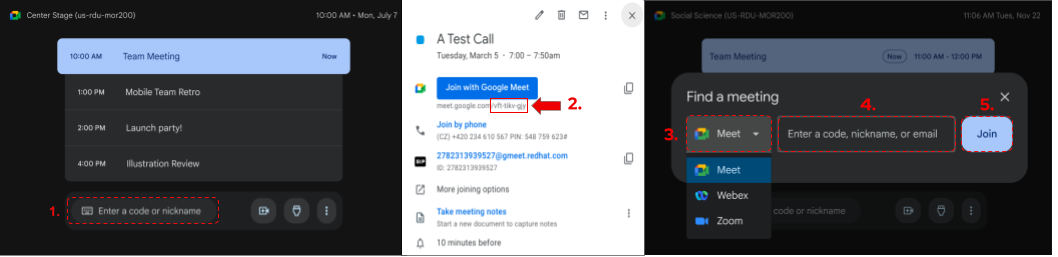
On the meeting room tablet tap on Enter a code or nickname.
Locate the 10-letter meeting code of your call in the calendar event.
Make sure Meet is selected in the platform dropdown menu.
Enter the 10-letter code (the dashes between the letter groups are not required).
Example of a code: zmz-xook-zhu
- Tap the blue Join button.
Joining a Google Meet call with a One Touch Join (OTJ)
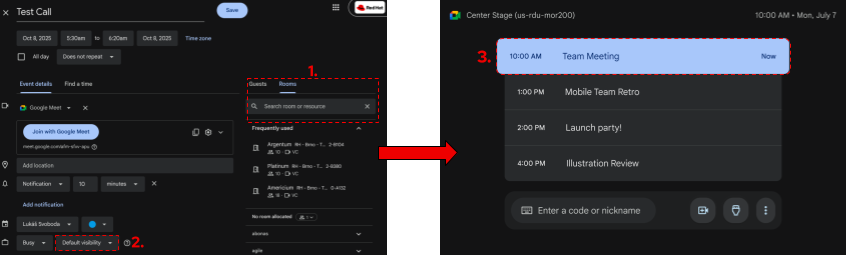
One Touch Join (OTJ) feature allows you to join the call without the need to manually enter the meeting code. To set it up follow the steps below:
During event creation, ensure that you add a room resource to the event from which you are planning to join the call.
During event creation, ensure that your event is not set to be private.
If an event is private, the system won’t be able to read the event’s details and the One Touch Join functionality won’t be available.
Once it is time for your call, on the in-room tablet tap on your scheduled call.
Important Note: One Touch Join (OTJ) is available only in bookable meeting rooms.
Content Sharing | On a call (Google Meet)
Content sharing to a Google Meet call is available via Google Companion mode, but also directly via cable connection, see all options below.
Option 1. - Companion Mode
Join the call from your laptop as usual.
In the call lobby, choose the Present button if you want to present immediately or Use Companion mode instead to join the call and be ready to present when needed.
Joining via Companion mode will automatically mute your microphone and audio to prevent audio feedback and other distractions.
Utilize the Present button to select what content you want to present.
Option 2. - Via USB-C Cable
Launch a Google Meet call from the meeting room tablet.
Connect the USB-C cable to your laptop.
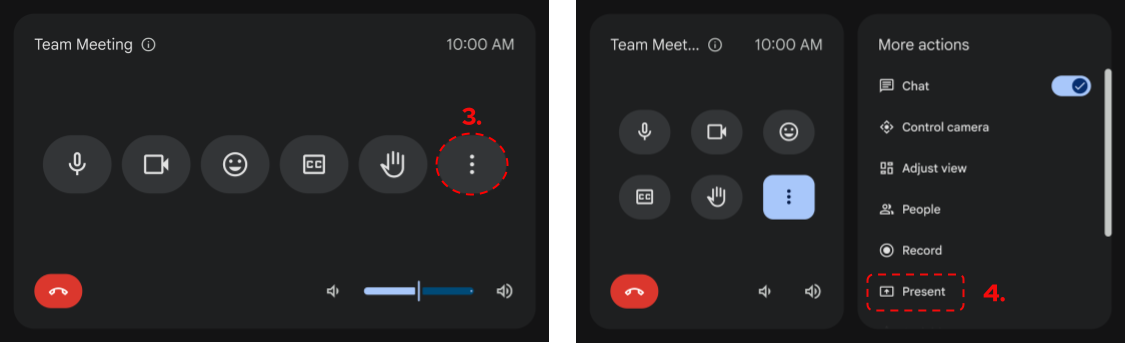
Tap on the More icon (three dots) → More actions menu will appear.
Tap on the Present button.
Tap on HDMI Device and Start presenting.
To stop presenting, tap on the Stop presenting button.
Local Content Sharing | Outside of a call
Connect the USB-C cable to your laptop.
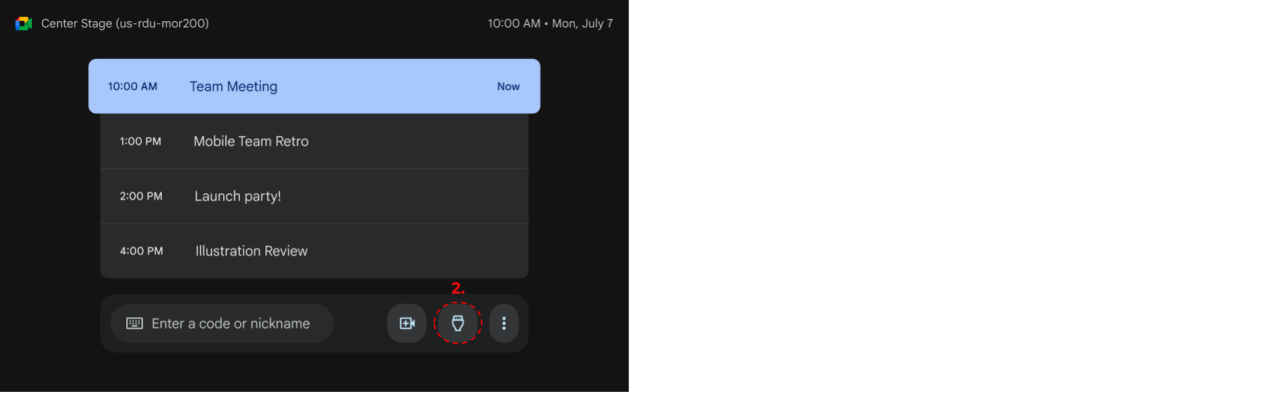
Tap on the HDMI Present icon.
If sharing audio: Make sure your laptop's audio output is set to the room system.
Tap on the Start presenting button.
To stop presenting, tap on the Stop presenting button.
Joining a Webex or a Zoom meeting
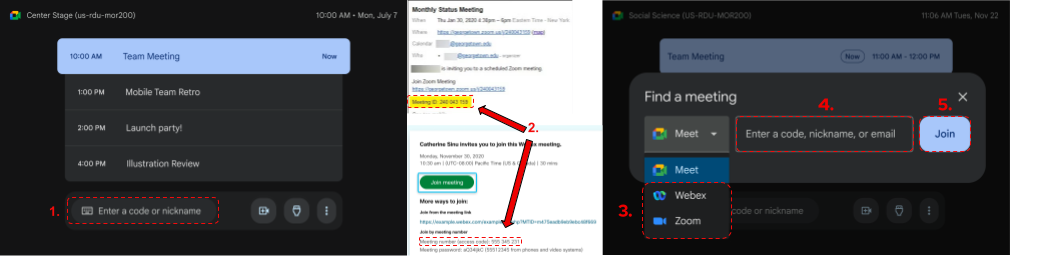
- On the meeting room tablet tap on Join or start a meeting.
- Locate the Cisco Webex or Zoom meeting code of your call in the calendar event.
- Depending on the platform you want to use, select Cisco Webex or Zoom in the platform dropdown menu.
- Enter the Cisco Webex meeting number or Zoom meeting ID.
- Tap the blue Join button.
- Wait until you are admitted to the call.
Important notes:
- Cisco Webex and Zoom are not Red Hat IT supported video platforms.
- In order to share a content you will need to use Webex's and Zoom's web or OS application (or Google Meet Companion mode equivalent).
Bring Your Own Meeting (BYOM) | For platforms like Microsoft Teams and others
Bring Your Own Meeting (BYOM) feature enables you to join platforms such as Microsoft Teams, as you can utilize the in-room video conferencing equipment (microphone, speakers, camera and screen) via the USB-C cable to enhance your experience and launch the platform of your choice from your laptop.
To leverage this feature, follow the steps below:
- Optional - for standard conference rooms and enclaves:
- On the meeting room tablet, swipe from right to left. Side menu will appear.
- In the side menu, select Device Mode.
- Connect the USB-C cable to your laptop.
- Tap on the HDMI Present icon.
- In case you want the in-room display to serve as a secondary display and not as a mirror, make sure to change that in the display settings of your laptop.
- In your laptop audio settings, ensure that the room is chosen as the output and input.
- Optional - Only applicable for large custom event spaces with two control tablets (e.g. Plutonium, Dodgeball, etc.)
- On the Q-SYS tablet change the camera mode from “Privacy Mode” to “Static Mode” or “Auto Camera Recall”, depending on your needs.
- In your laptop camera settings, ensure that the room’s camera is chosen.
- Open your video platform of choice and re-check that the correct peripherals are selected.
- Join your meeting.
For more information about video conferencing service at Red Hat visit The Source (Internal only).
Have a suggestion or comment about Work Your Way?

Products
- Red Hat Enterprise Linux
- Red Hat OpenShift
- Red Hat Ansible Automation Platform
- Cloud services
- See all products
Tools
- My account
- Training and certification
- Customer support
- Developer resources
- Learning community
- Partner resources
- Resource library
Try, buy & sell
- Product trial center
- Red Hat Marketplace
- Red Hat Ecosystem Catalog
- Find a partner
- Red Hat Store
- Console
Communicate
About Red Hat
We’re the world’s leading provider of enterprise open source solutions—including Linux, cloud, container, and Kubernetes. We deliver hardened solutions that make it easier for enterprises to work across platforms and environments, from the core datacenter to the network edge.
Subscribe to our newsletter, Red Hat Shares
Red Hat legal and privacy links
- About Red Hat
- Jobs
- Events
- Locations
- Contact Red Hat
- Red Hat Blog
- Diversity, equity, and inclusion
- Cool Stuff Store
- Red Hat Summit